Traffic Orchestration
Traffic orchestration lets you control which models serve the prediction traffic of a deployment. It enables you to:
- Split traffic between two models (e.g. for A/B testing or gradual rollouts)
- Shadow models: send a copy of all incoming requests to additional models without affecting the responses sent to your clients
To open the traffic orchestration view, go to the Deployments view and click on the Traffic orchestration button of the deployment, or use the Traffic orchestration entry in the navigation sidebar of the deployment detail page.
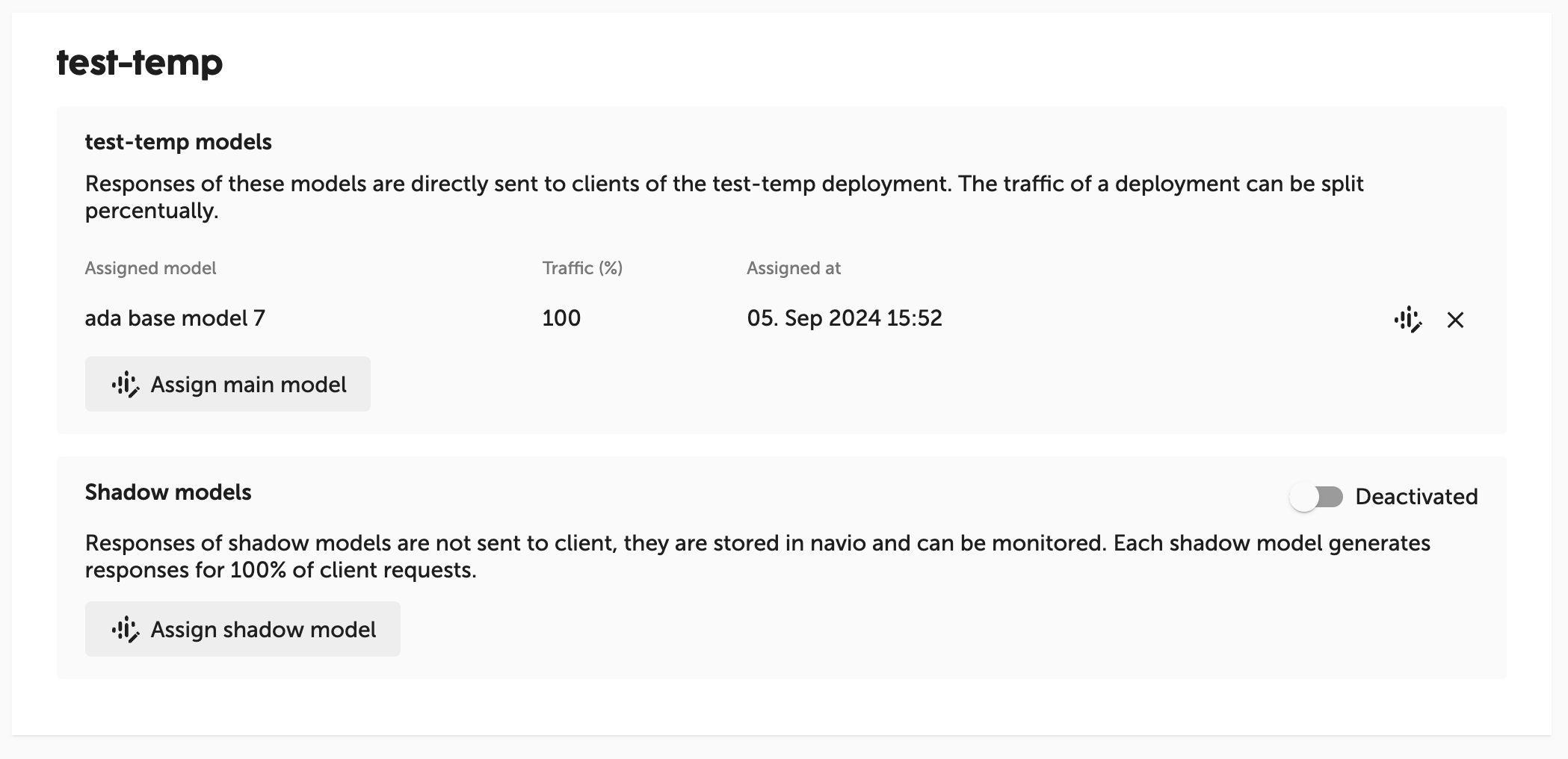
Main Models
Main models serve the actual traffic of a deployment: responses of these models are directly sent to the clients of the deployment.
You can assign up to 2 main models to a deployment and split its traffic between them percentually:
- If only 1 model is assigned, it automatically handles 100% of the traffic.
- If 2 models are assigned, each incoming request is routed to one of the two models, randomly chosen based on the configured traffic percentages. The percentages must be whole numbers and always sum up to 100%.
Assigning a main model
- Open the traffic orchestration view of the deployment.
- Click on
Assign main model. - Select a model from the dropdown. Models that cannot be assigned (e.g. inactive models or models with an incompatible input/output structure) are greyed out with a tooltip explaining the reason.
- If a second model is assigned, set the traffic percentage. The percentage of the other model is adjusted automatically so that both sum up to 100%.
You can change the traffic split or replace a model at any time using the edit action of the corresponding table row.
Removing a main model
You can remove a main model using the remove action of the corresponding table row.
- If you remove one of two main models, the remaining model automatically handles 100% of the traffic.
- If you remove the last main model, all assigned shadow models are removed as well.
Shadow Models
Shadow models allow you to evaluate candidate models against real production traffic without any risk: responses of shadow models are never sent to clients. Instead, they are stored in navio and can be inspected on the monitoring view.
Each shadow model receives a copy of 100% of the client requests. The requests are forwarded to shadow models asynchronously, so shadowing does not add latency to the responses your clients receive.
You can assign up to 10 shadow models per deployment. At least one main model must be assigned before you can assign shadow models.
Activating and deactivating shadowing
Shadowing can be switched on and off for the whole deployment using the Activated/Deactivated toggle in the header of the shadow models widget. The Active since column shows since when the assigned shadow models have been receiving traffic.
Model compatibility
A model can only be assigned as a shadow model (or as a second main model) if it is compatible with the existing main models:
- It must belong to the same use case and be active.
- It must have the same modelling domain and target column as the main models.
- Its input features must cover all feature columns (name and type) of the main models.
- It must not already be assigned as a main or shadow model of the deployment.
Typical Workflow: Safely Rolling Out a New Model
- Your deployment serves production traffic with one main model (100%).
- Assign a newly trained candidate model as a shadow model and activate shadowing.
- Compare the behavior of both models on the monitoring view — you can filter the monitoring data per main and shadow model.
- Once you are confident in the candidate, assign it as a second main model with a small traffic percentage (e.g. 10%) and gradually increase it.
- Finally, remove the old model so the new model handles 100% of the traffic.
Permissions
Viewing the traffic orchestration view requires the view deployments permission in the workspace. Assigning or removing models and toggling shadowing additionally requires the create deployment and view models permissions. See User Management for details on permissions.
note
For edge deployments changing the assigned model is currently not supported.