Creating a Use Case
A use case refers to a specific scenario where you want to detect anomalies — for example, a certain part or production state you want to inspect. The Use cases overview shows all your use cases along with the provided demo use cases, which you can explore to get a better understanding of how navio VISION works in practice.
Each use case card shows the model status (e.g. Training started, Ready), the creation date and whether a live data connection is active.
Preparing Your Data
To train a model, you need two image datasets:
- Normal (OK) images: at least 20 images of defect-free parts or correct states — 50+ images lead to better results.
- Anomaly (Not OK) images: at least 10 images showing defects or incorrect states. If you have many different anomalies, ~5–10 images per anomaly lead to good results.
tip
For best results, use images with the same angle and resolution.
Creating the Use Case
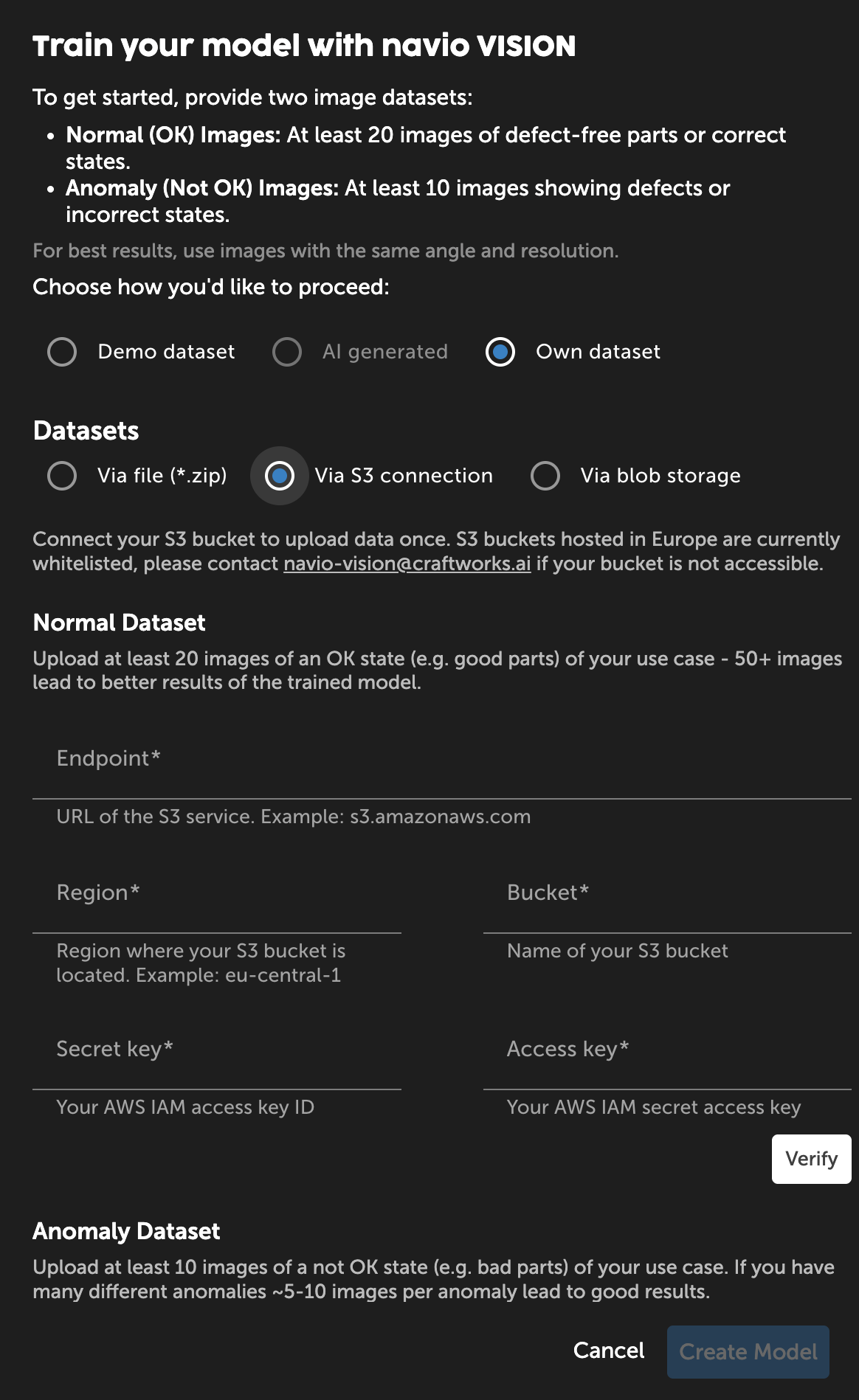
Click Create a new use case on the use cases overview. In the dialog you choose how to provide your datasets:
- Demo dataset — select one of the predefined, license-attributed demo datasets with a preview of its normal and anomaly images.
- AI generated — describe the dataset you want and let AI models generate it for you (coming soon).
- Own dataset — provide your own normal and anomaly datasets, each via one of the following options:
Via file (*.zip)— upload a zip archive of your images (max. 1 GB per dataset).Via S3 connection— connect your S3 bucket (endpoint, region, bucket, access key, secret key) to upload the data once.Via blob storage— connect your Azure Blob Storage (endpoint, container, account name, account key) to upload the data once.
For S3 and Azure Blob connections you can verify the connection directly in the dialog before proceeding.
note
S3 buckets and blob storages hosted in Europe are currently whitelisted — please contact us if your bucket is not accessible.
Training and Review
After clicking Create Model, you can give your model a name. What happens next depends on the dataset source:
- Demo or AI-generated dataset: the model starts training immediately. This usually takes 20–30 minutes.
- Own dataset: your data is first reviewed by our experts, who set up your model for training. This usually takes 1–2 business days; the use case is shown as
In Reviewin the meantime.
In both cases you will receive an email once your model is ready to use. The trained model is deployed automatically — no further steps are needed before you can start inspecting images.
On the use case details page you can review the model information, the linked dataset (including its license for demo datasets) and the performance metrics of the trained model.